 AppLinkly
Docs · Get started
From install to your first live address.
Six steps. Each gives the exact command or button, and what you see when it worked. When it did not, go to Common issues.
You need
- A terminal on the machine that runs your app.
- An email address you can open.
- An app answering on a port, or a folder.
The example used here
- Your app:
- http://localhost:3000
- Its address:
- https://app1.applinkly.com
Using the desktop app? Install it, open it, sign in there, and continue at step 5: the screens are the same.
Step 1: Install the Agent
Paste the line for your system in a terminal.
brew install themoniers/tap/applinklycurl -fsSL https://applinkly.com/install.sh | shirm https://applinkly.com/install.ps1 | iexIt worked when applinkly --version prints a version number. "Command not found"? Open a new terminal and try again.
Packages for Linux and the other ways to install are on the Install page.
Step 2: Start it
Run this and leave the terminal open. Nobody is signed in on this machine yet, so the Agent prints an address and a code, then waits.
$ applinkly start
Nobody is signed in on this machine. Open on any device:
  https://console.applinkly.com/activate  and enter  KBDF-QXRT
  or sign in on the local page: http://127.0.0.1:53127
The code lasts 10 minutes. Waiting for approval…
It worked when you see the address, an 8-letter code, and a QR code where the terminal can draw one.
Your code and your port differ from this example. Use the ones your terminal printed.
Step 3: Approve the sign-in
In a browser, on this computer or on your phone with the QR code.
- Open the address your terminal printed, on console.applinkly.com.
- No account yet: choose Request access, fill in the form, then open the link in the email we send. Back on the address above, sign in.
- Under Sign in an agent, type the code from your terminal in Code, then Continue.
- Under Sign in this agent as you?, check that Machine and System are your computer. Choose how long it Stays signed in for, then Approve.
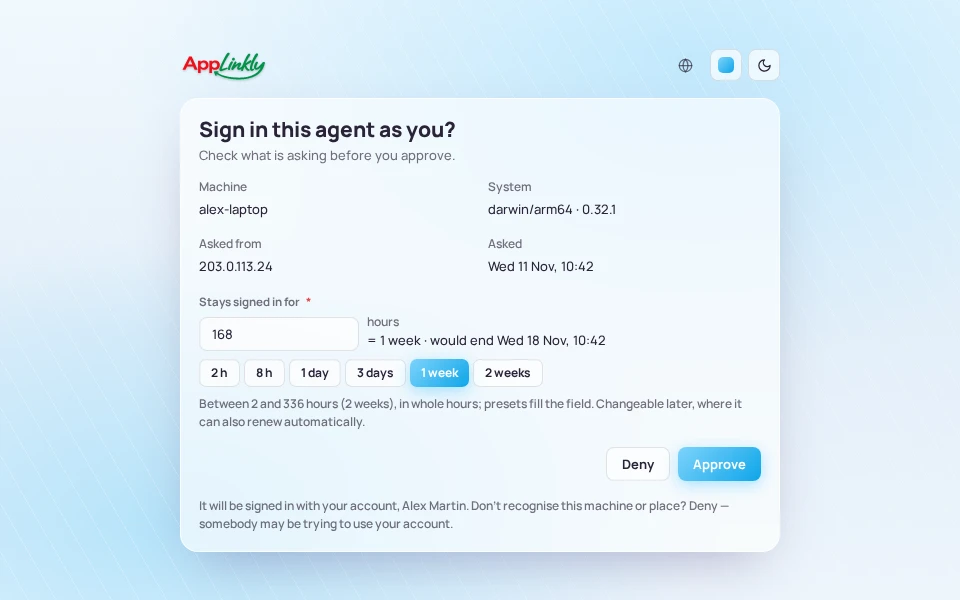
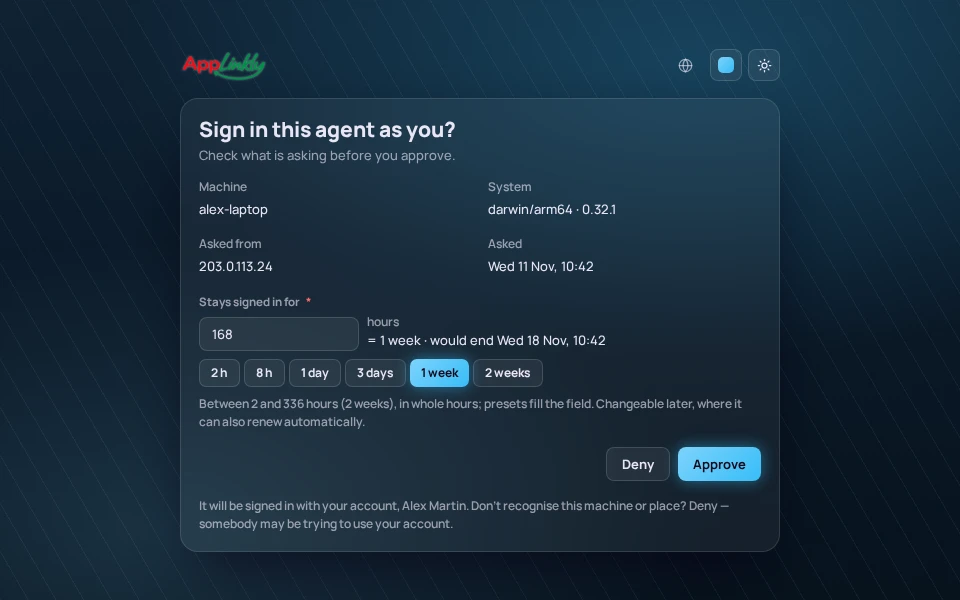
Back in your terminal, within a few seconds:
✓ Signed in as alex.martin@example.com — for 1 week, until Wed 18 Nov, 10:42
Connecting to api.applinkly.com…
✓ Connected to api.applinkly.com
✓ Serving no endpoints yet — add one on the local page or in the console
  Local page: http://127.0.0.1:53127
  No browser here — open it through ssh -L 53127:127.0.0.1:53127
  Press Ctrl-C to stop. Everything goes offline when it stops.
It worked when the lines with a tick appear. Only approve a code you asked for yourself: choose Deny for a machine you do not recognise.
Step 4: Open the local page
The local page is where you manage this machine. It answers on this machine only, at the address after Local page: in your terminal.
- Open the address from your terminal in a browser on this machine.
- Under Sign in to …, sign in with your AppLinkly account. The page has its own sign-in, separate from the Agent's.
- Register this machine appears once and completes by itself: nothing to type.
It worked when the Dashboard shows Tunnel Connected, Enrollment Enrolled with an Edge, and Active endpoints.
No browser on that machine? From your laptop, forward the port your terminal printed: ssh -L 53127:127.0.0.1:53127 your-server, then open http://127.0.0.1:53127 on the laptop.
Step 5: Add an endpoint
An endpoint is one public address and what it forwards to. In the local page, open Endpoints, choose New endpoint, and fill in Add an endpoint from top to bottom.
- Domain: leave applinkly.com.
- Subdomain: type
app1, then Check availability. Go on when it says This subdomain is available. - Target: paste the link you open your app with on this machine,
http://localhost:3000. - Protocol: already set from the target. Leave it.
- Port on your machine: already set from the target. It must be the port your app listens on.
- Serving agent: leave This machine (default), then choose Create.
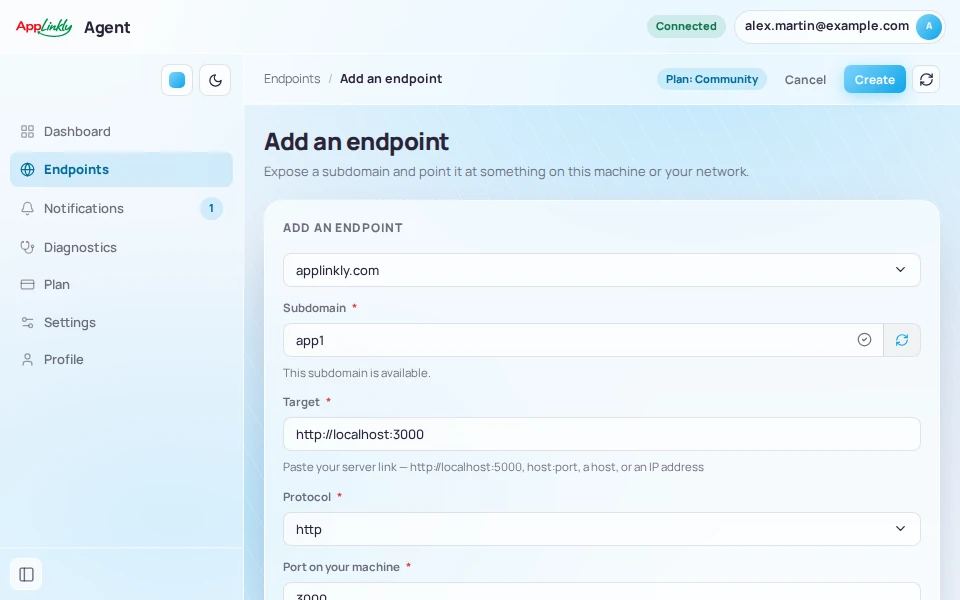
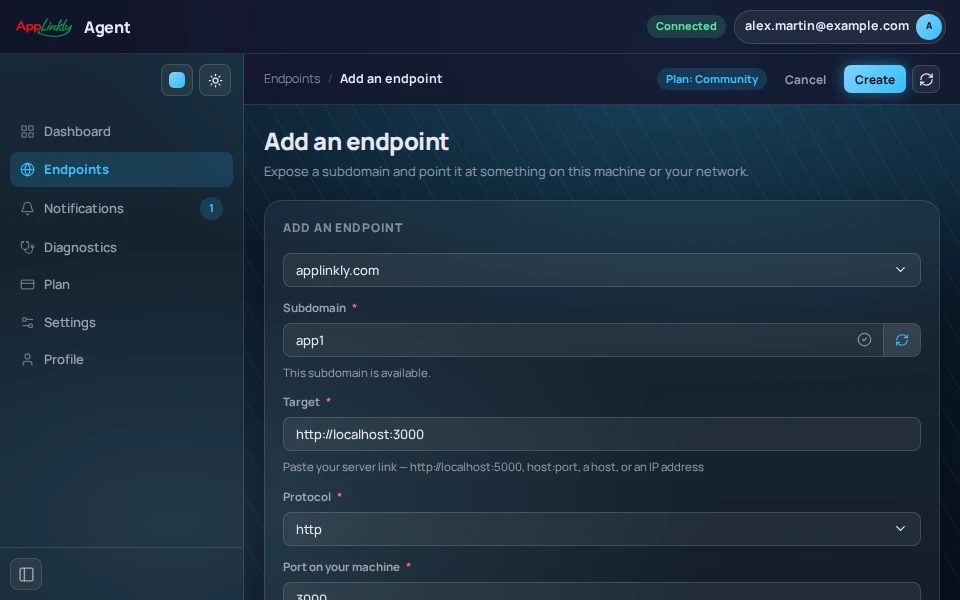
It worked when the page says Endpoint created. This machine is starting to serve it. and the list shows app1.applinkly.com.
Publishing a folder instead: set Protocol to Folder to Web, then Browse… to the folder. Its address lists the files, unless you turn on Open a default page.
Names you cannot take: console, www and api are reserved. Any other free name belongs to whoever takes it first.
Step 6: Test it and share it
Both buttons are on the endpoint, in the list and on its page.
- Choose Test. It goes through the real path, from the public address to your app.
- Choose Share. Copy the Public address, or scan the QR code with a phone.
- Open the address on a phone that is on mobile data, not on your Wi-Fi.
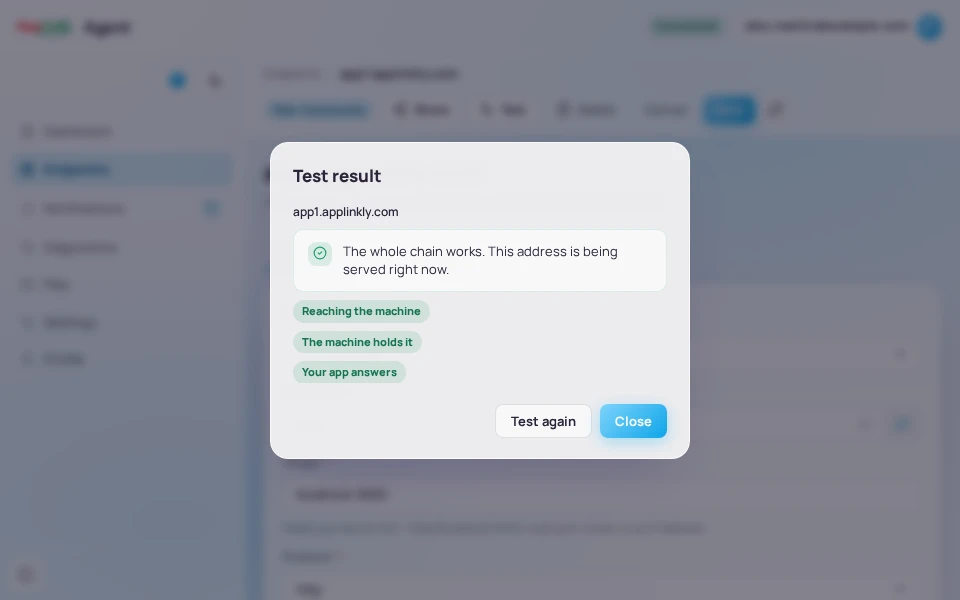
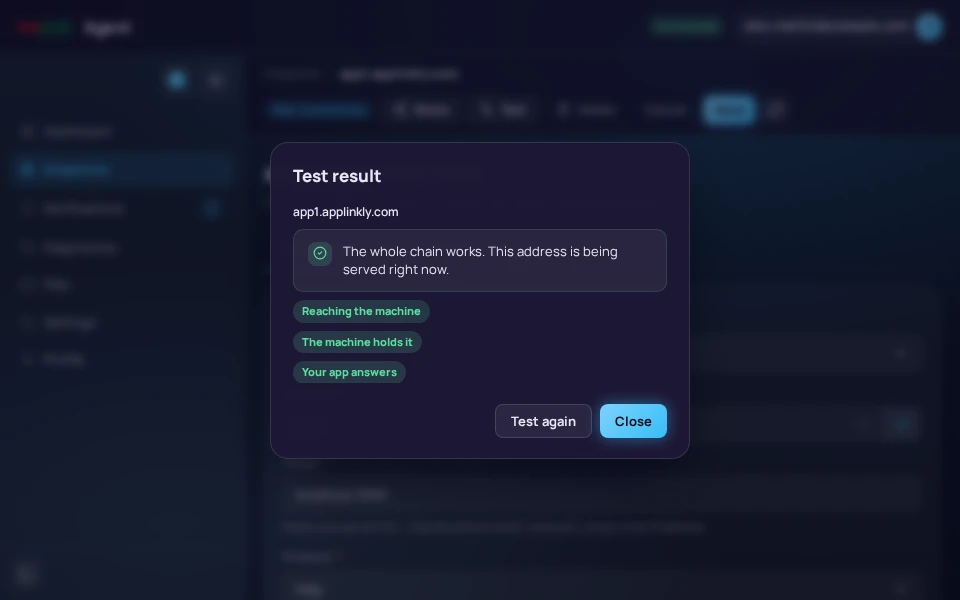
It worked when it says The whole chain works. This address is being served right now. with Reaching the machine, The machine holds it and Your app answers ticked, the endpoint shows Live, and your app opens on the phone. A check that fails names the part to fix: see Test stops at one of the checks.
The address answers while the Agent runs. Ctrl-C stops it and keeps you signed in; visitors then see a page telling them to come back. To keep it running, see What next.
Play the videoNo sound. The steps above say the same in text.
Common issues
Find the message you see. Each answer gives the cause, then the fix.
Signing in
The console says This code is not valid.
Cause: a code lasts 10 minutes and works once. After 10 minutes the terminal prints "The code expired before anyone approved it; here is a new one."
Fix: type the newest code shown in the terminal that is still waiting. If that terminal was closed, run applinkly start again.
The email to confirm my address did not arrive
Fix: look in the spam folder. Otherwise, on the screen One last step: confirm your email, choose Resend email. Open the newest email only: older links stop working.
"Another AppLinkly Agent is already running on this machine"
Cause: one Agent runs per machine, and the desktop app or the service is already running. The command ends with exit code 3.
Fix: the message names what is running and how to stop it. Either use that one and continue at step 4, or stop it and run applinkly start again.
"Not connected to … yet — it keeps trying."
Cause: the machine cannot reach AppLinkly. The Agent opens an outgoing connection; a firewall, a proxy or a lost network stops it. When nothing can be reached at all, the command ends with exit code 8.
Fix: check that this machine opens https://applinkly.com. The Agent retries by itself. In the local page, Diagnostics then Run checks shows which part fails.
The local page asks me to sign in again
Cause: the page's sign-in is separate from the Agent's own, and ends when the Agent restarts.
Fix: sign in again. Your endpoints kept being served in the meantime.
Adding an endpoint
This subdomain is already taken under this domain.
Cause: someone holds that name, or it is one of the reserved ones: console, www, api.
Fix: type another name and choose Check availability again.
This port differs from the target's own port (…). The endpoint forwards to the port in this field, so with the target naming another one it won't work — align the two.
Cause: Target names one port and Port on your machine another. The endpoint forwards to the second.
Fix: put the port your app listens on in both.
Your plan's limit is reached — see Plan to add more
Cause: your plan sets how many addresses and Agents you can have.
Fix: delete an endpoint you no longer use, or open Plan in the local page. Compare the plans.
Test stops at one of the checks
It stops at Your app answers
Message: Nothing answered where this endpoint forwards to. Is your app running on that port?
Fix: on the same machine, open http://localhost:3000. If it does not open, start your app. If it opens on another port, edit the endpoint and correct Target and Port on your machine. Then Test again.
It stops at Reaching the machine
Message: This machine is not connected to the Edge. Check the tunnel on the dashboard.
Fix: open Dashboard. While Tunnel says Reconnecting, wait: the Agent keeps trying. If it stays Disconnected, open Diagnostics, choose Run checks, and Fix automatically when it is offered.
It stops at The machine holds it
Cause: the machine has not received the endpoint yet, or the endpoint is switched off.
Fix: wait a few seconds and choose Test again. If its status is Disabled, switch it back on. Check that Serving agent is the machine your app runs on.
After it worked
Visitors see a page telling them to come back
Cause: the Agent is not running or not connected: the terminal was closed, the machine sleeps, or the network dropped. The endpoint shows Offline.
Fix: run applinkly start. To have it start with the machine, run applinkly service install.
The address opens, but shows the wrong app or an error
Cause: the endpoint forwards to a port where something else answers, or your app returns the error itself.
Fix: open the target on the same machine. What you see there is what the address shows. Correct the port, or the app.
How do I stop, sign out, or start over?
Fix: Ctrl-C stops the Agent and keeps this machine signed in. applinkly logout ends this machine's sign-in. applinkly reset --yes returns this machine to a fresh install.
Not in this list? In the local page, open Diagnostics, choose Run checks, and send us what it shows.
Commands and exit codes
Commands
- applinkly start
- Sign in if needed, connect, and serve until Ctrl-C.
- applinkly service install
- Run as a service for your user: starts with your session.
- sudo applinkly service install --system
- Run for the whole machine. Then sign it in with
sudo applinkly service login. - applinkly service status
- Say whether the service runs.
- applinkly service uninstall
- Remove the service.
- applinkly logout
- End this machine's sign-in.
- applinkly reset --yes
- Return this machine to a fresh install.
- applinkly --version
- Print the version.
Exit codes
| Code | Meaning |
|---|---|
| 0 | Done. |
| 1 | Failed; the reason is printed. |
| 2 | The command line could not be read. |
| 3 | Another AppLinkly Agent is already running on this machine. |
| 4 | Signed out from the console while it ran. |
| 5 | The sign-in was denied. |
| 6 | The code expired. |
| 7 | Needs administrator rights; the line to run again is printed. |
| 8 | AppLinkly could not be reached. |
| 9 | The service is not installed. |
| 10 | The service is installed but stopped. |
What next
Keep it running
Stop applinkly start with Ctrl-C, then install the service. It starts with the machine and reconnects by itself.
applinkly service install
Put a password on it
Open the endpoint, go to Protection, turn on Protect this app, and add a credential. Visitors sign in before they reach your app.
Let your AI do it
In the local page, open Settings and turn on MCP. Give your assistant the address shown there, and steps 5 and 6 become one sentence.